Bundle types / Multipack
Multipack bundles
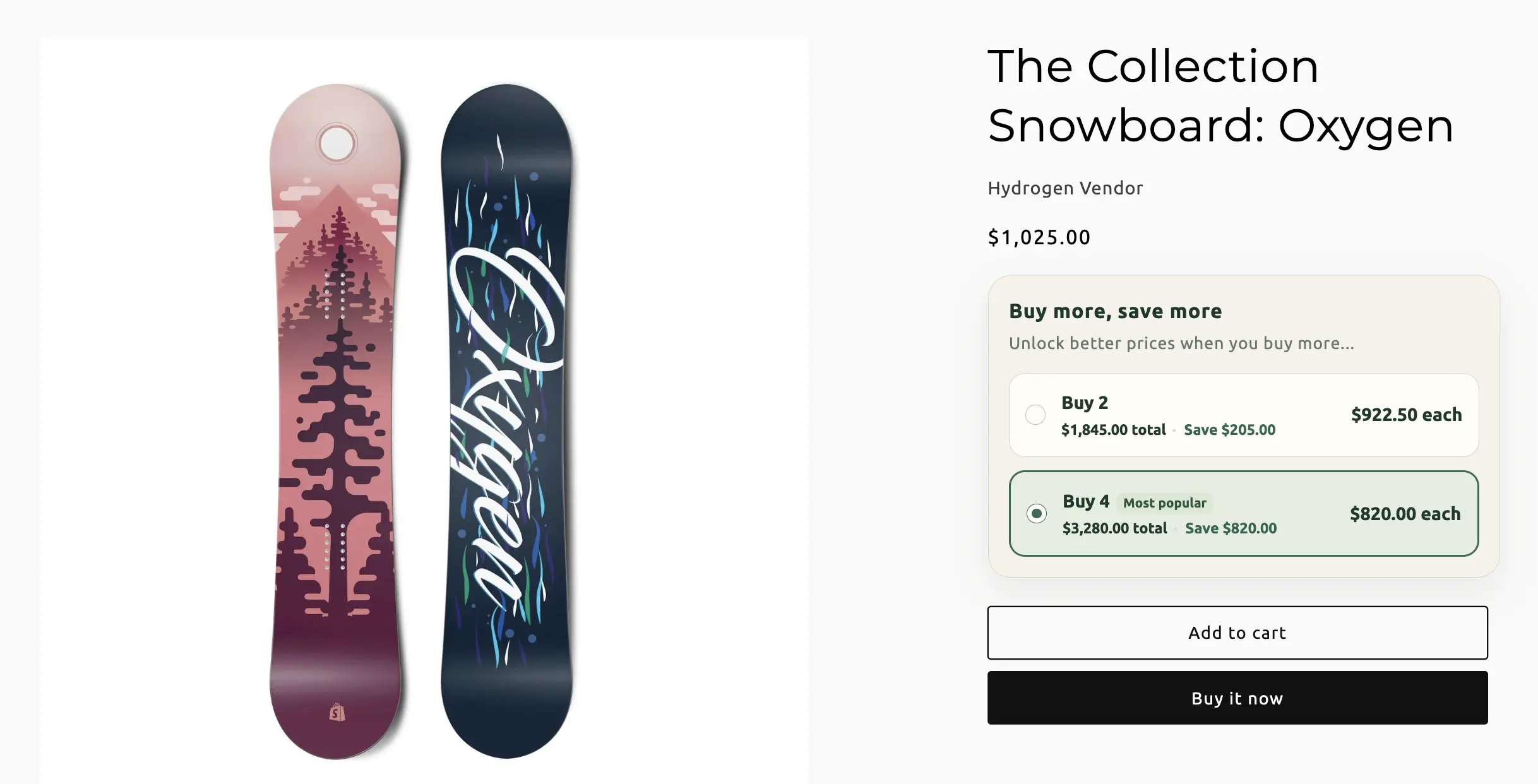
Tiered quantity breaks — buy more, save more. Apply the offer to one product, a group of products, or every product except exclusions. Only one all-products multipack is allowed per shop.
When to use Multipack
Volume pricing on units of the same offer, not a mixed kit. Shoppers pick a quantity tier on the product page; checkout applies the best matching break automatically.
On this page
Name the bundle
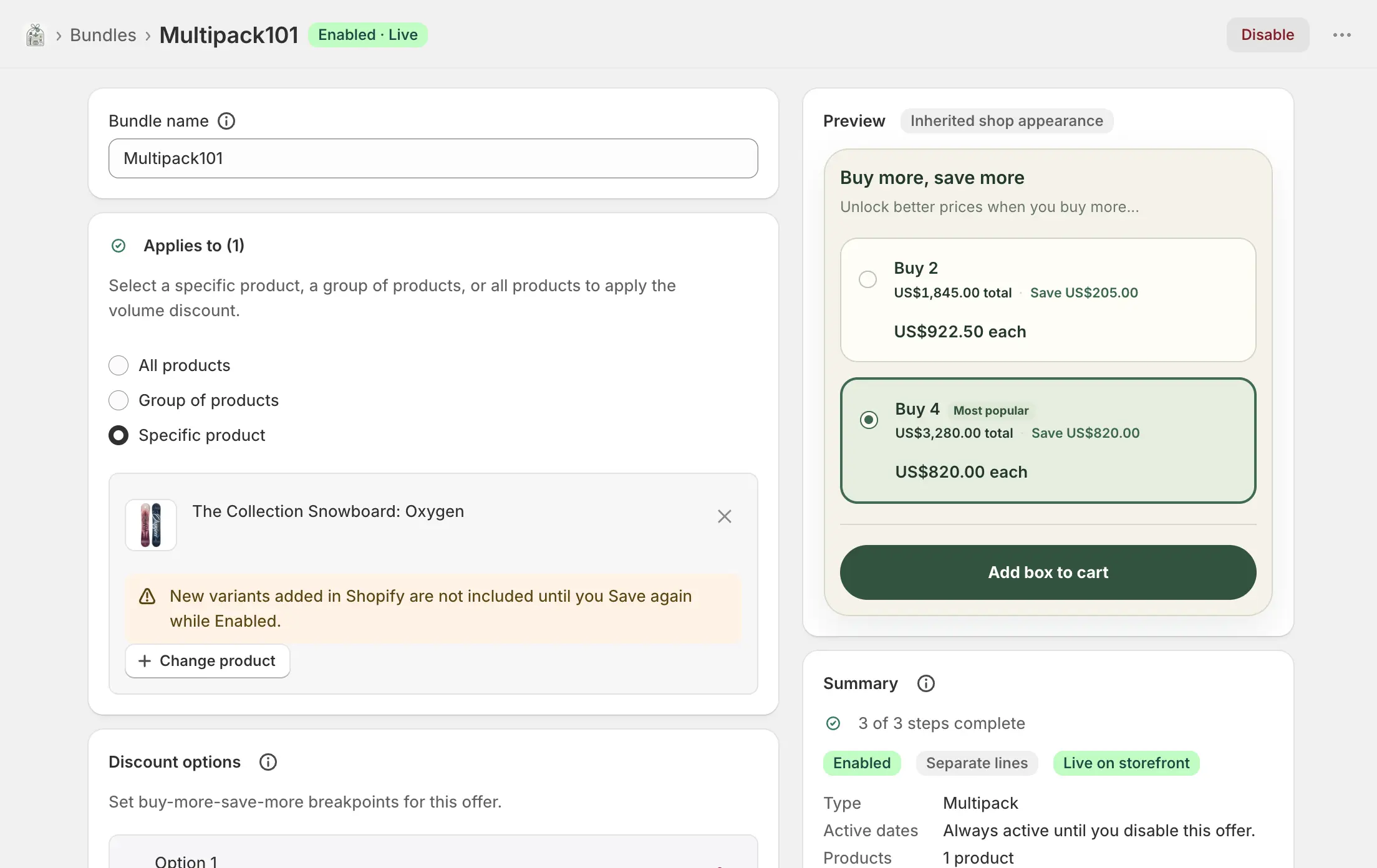
Bundles → Create bundle → Multipack. Bundle name is internal only. The widget starts enabled for this type — shoppers see quantity breaks on matching product pages once the bundle is live and the app embed is saved.
Applies to
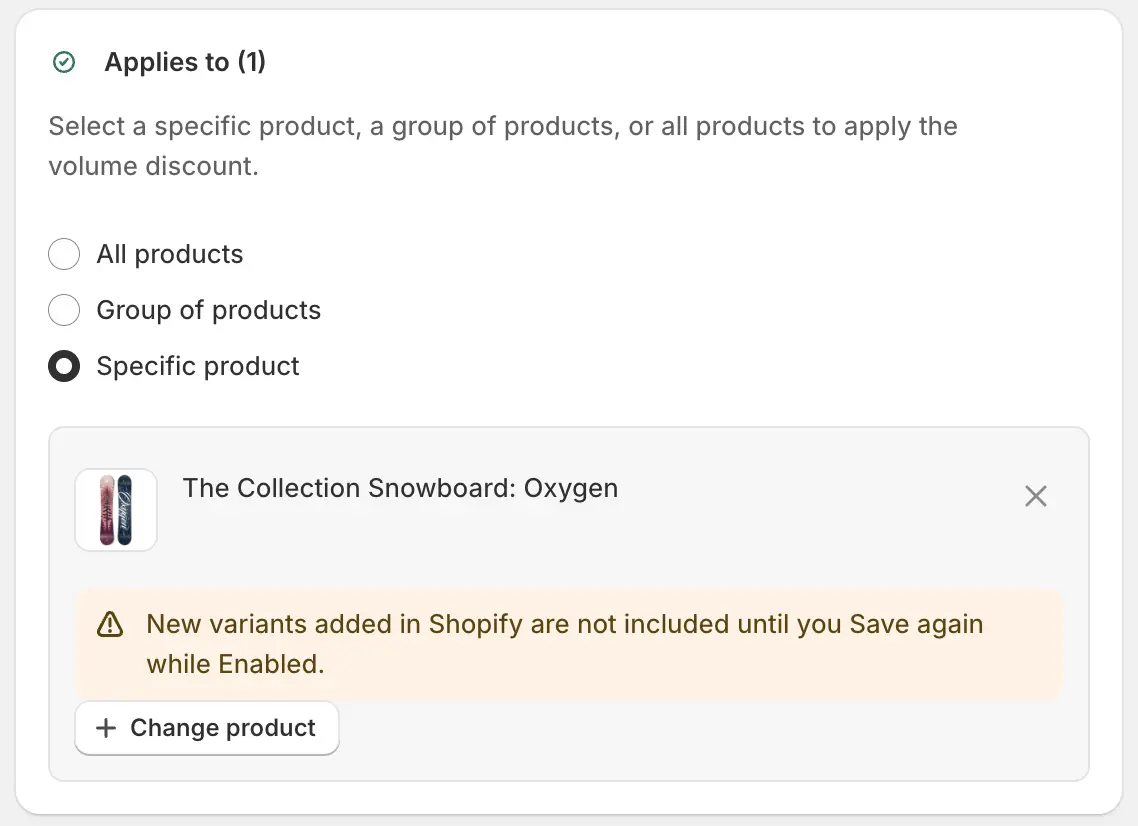
Where quantity breaks run. Switching mode keeps you from mixing a single-product offer with a catalog-wide one by accident.
- All products
- Breaks apply to every product except the exclusion list. Excluded products can have their own multipacks. Only one all-products multipack per shop. Use Add / Edit / Clear exclusions to maintain that list.
- Group of products
- Select two or more products. Quantity across the group unlocks the tier. Use Edit products to change membership.
- Specific product
- One host product. Change product to retarget. After selecting, Edit variants to include only the sizes or colours that should count.
- New variants in Shopify
- Variants added later on a targeted product are not in the offer until you Save again while the bundle is Enabled.
Discount options
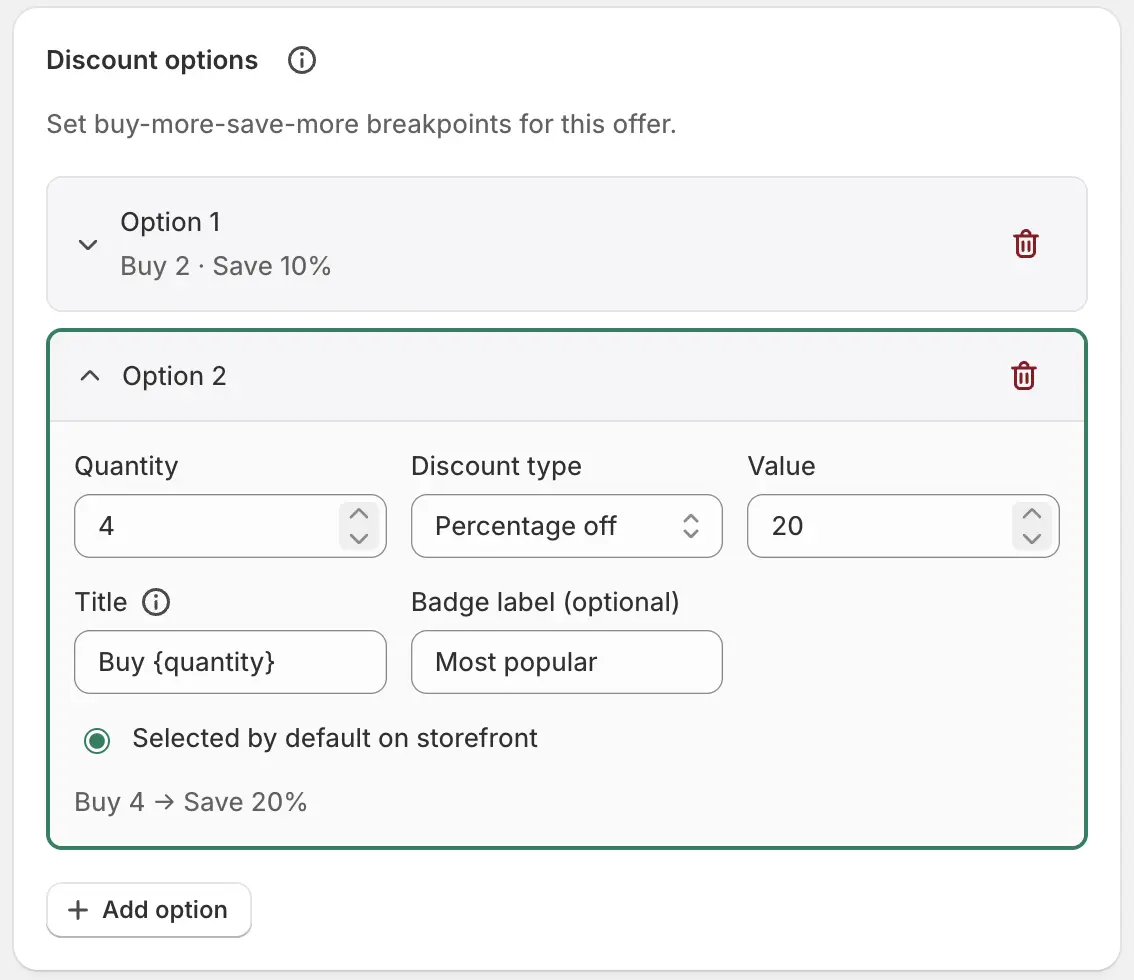
Each option is a quantity breakpoint. The best matching tier applies at checkout. Add as many as you need.
- Quantity
- Minimum units to unlock this option. Must be at least 1.
- Discount type
- Percentage off, fixed amount per unit, or a fixed amount off the whole pack.
- Value
- Percent (0–100 style amount) or a money amount, matching the type.
- Title
-
Quantity line on the storefront. Insert the break with
{quantity}(or{qty}), for example “Buy {quantity}”. - Badge label
- Optional chip on that option. If you highlight a tier without a label, shoppers see “Most popular”.
- Selected by default
- The radio that pre-selects this option on the product page. Only one tier can be the default.
- Add option / remove
- Add option appends a new break (quantity steps up by 2 from the last). Remove is available when more than one option exists.
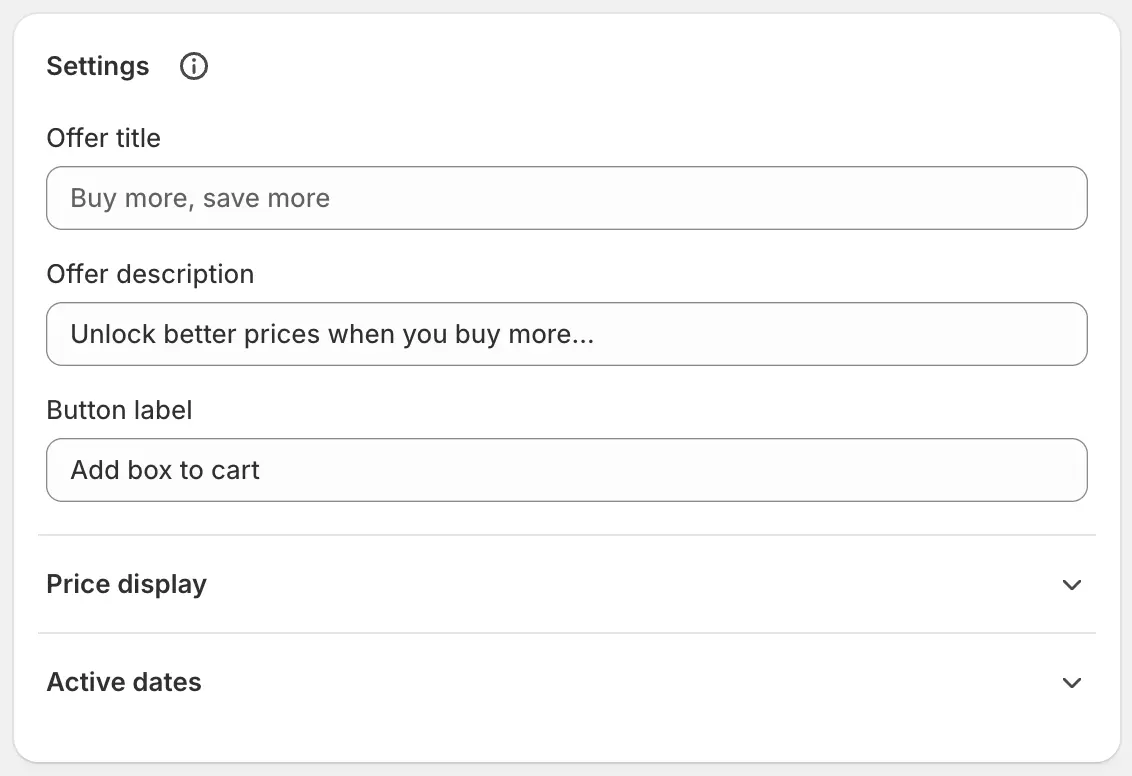
Offer copy, price display, and dates
- Offer title
- Widget headline. Default placeholder: “Buy more, save more”.
- Offer description
- Supporting line under the title.
- Button label
- Add-to-cart wording on the widget.
- Show price per item
-
Unit price on each option. Customise the label with
{price}, for example “{price} each”. - Show pack total
- Line total for that quantity. Template uses
{price}. - Show savings amount
- Money saved versus paying full unit price. Use
{amount}. - Show savings percentage
- Percent saved. Use
{percentage}in the label. - Show original price
- Compare-at / “was” price. Use
{amount}. - Active dates
- Optional start and end in shop timezone. Empty means the offer runs until you disable the bundle.
- Offer translations
- Per-language title, description, button, and price-display templates. Blank fields fall back to the primary language.
Widget theme
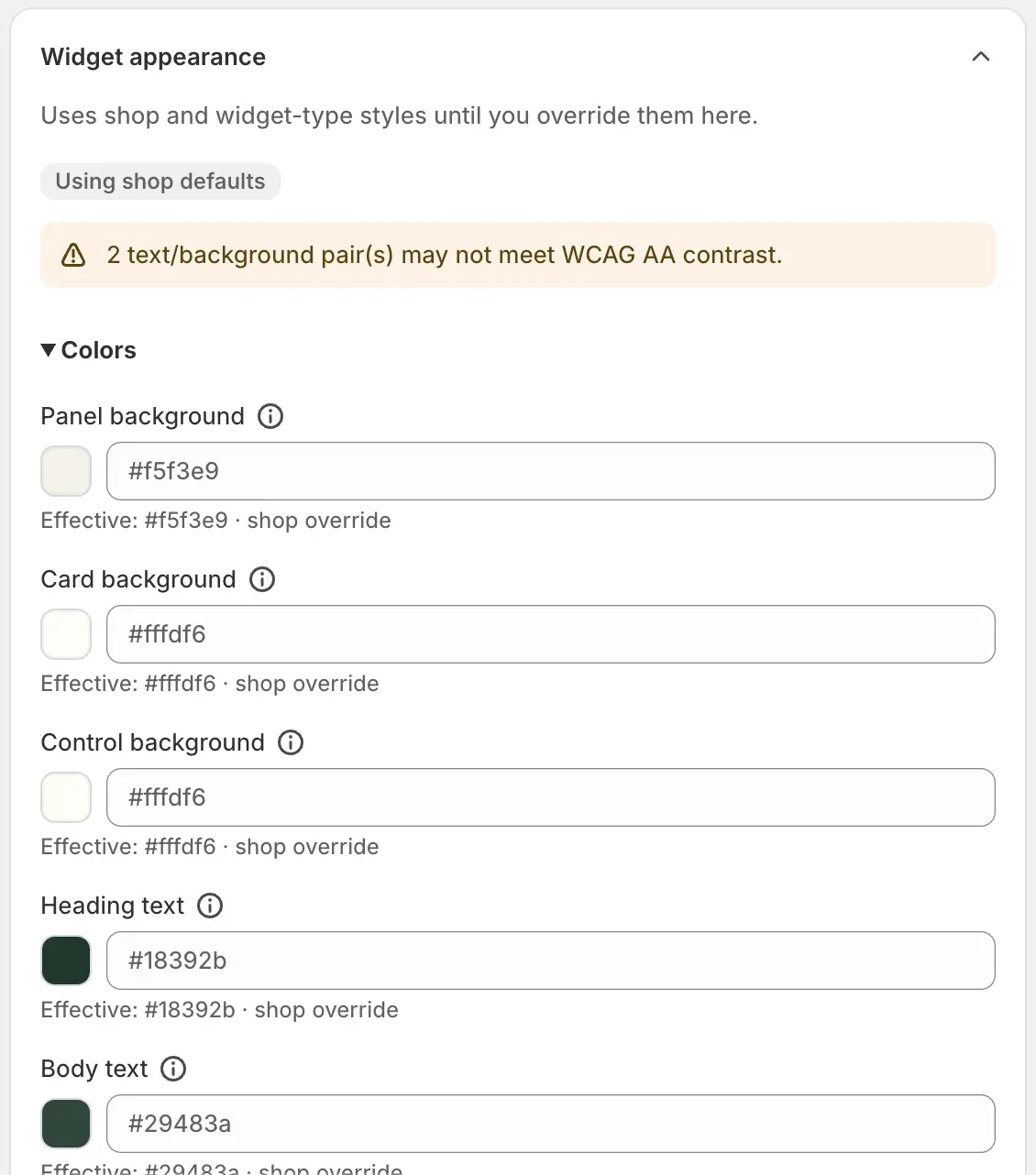
Colour and type overrides for this multipack only. Empty tokens inherit shop defaults. Reset bundle restores inheritance. The live preview uses the same tokens.
Save, enable, and go live
Create, then Enable
Save the Disabled definition, then Enable. Confirm the Bundle widget embed is saved in the theme editor so the breaks render on product pages.
Wait for Enabled · Live
The badge is the source of truth. How to read it. Open a targeted product and confirm the options, default selection, and prices.