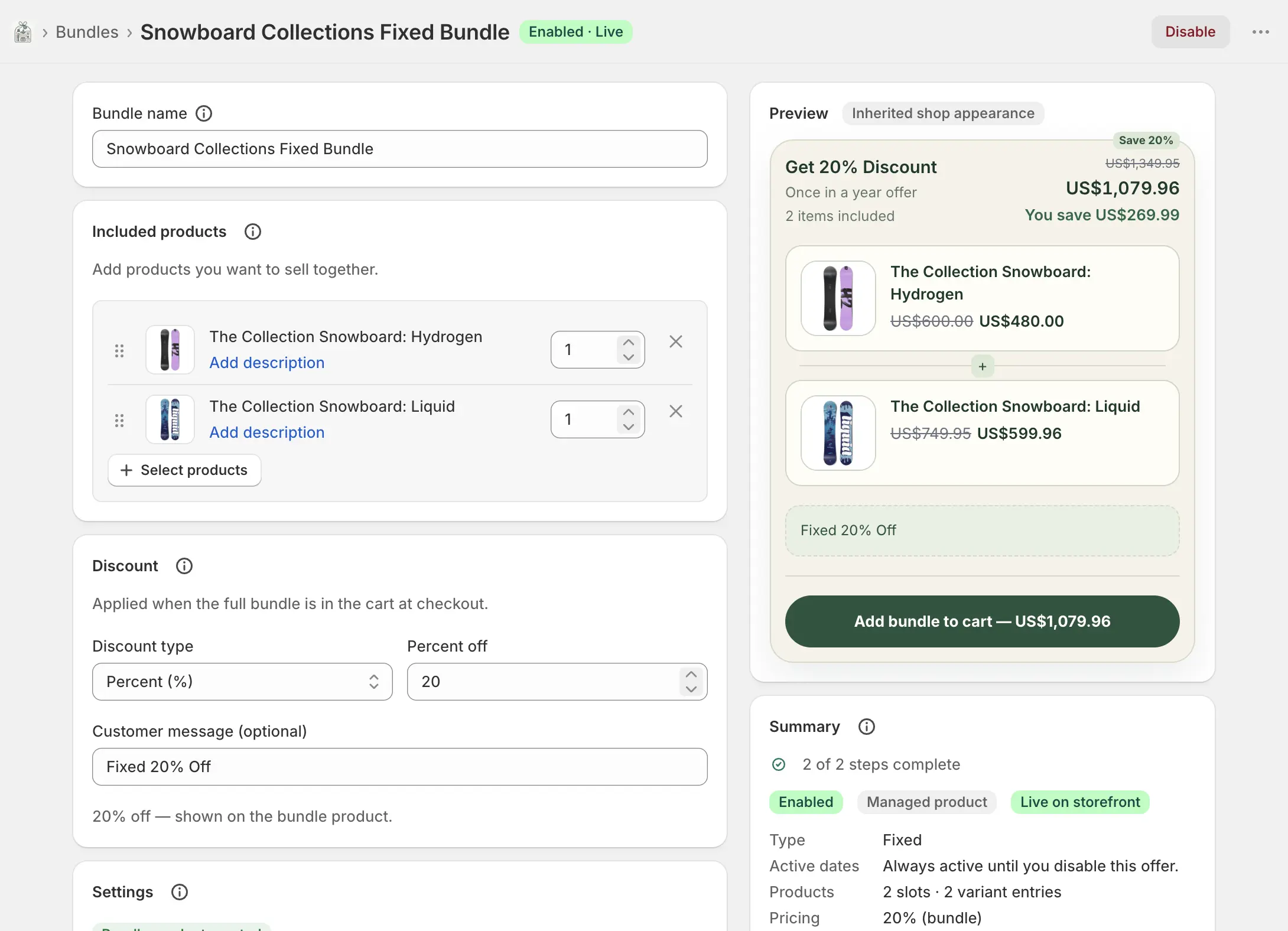
Bundle types / Fixed
Fixed bundles
An exact set of products. Every part is required. Use this for gift sets, kits, and “buy this combination” offers. Optionally create a dedicated Shopify product so checkout can merge the set into one line.
When to use Fixed
Shoppers do not choose among extras. They buy the set you defined, with variant pickers only where a product has more than one variant.
On this page
Name the bundle
Go to Bundles → Create bundle → Fixed. Bundle name is for you only — it appears on the Bundles list, Analytics, and the editor, not on the storefront.
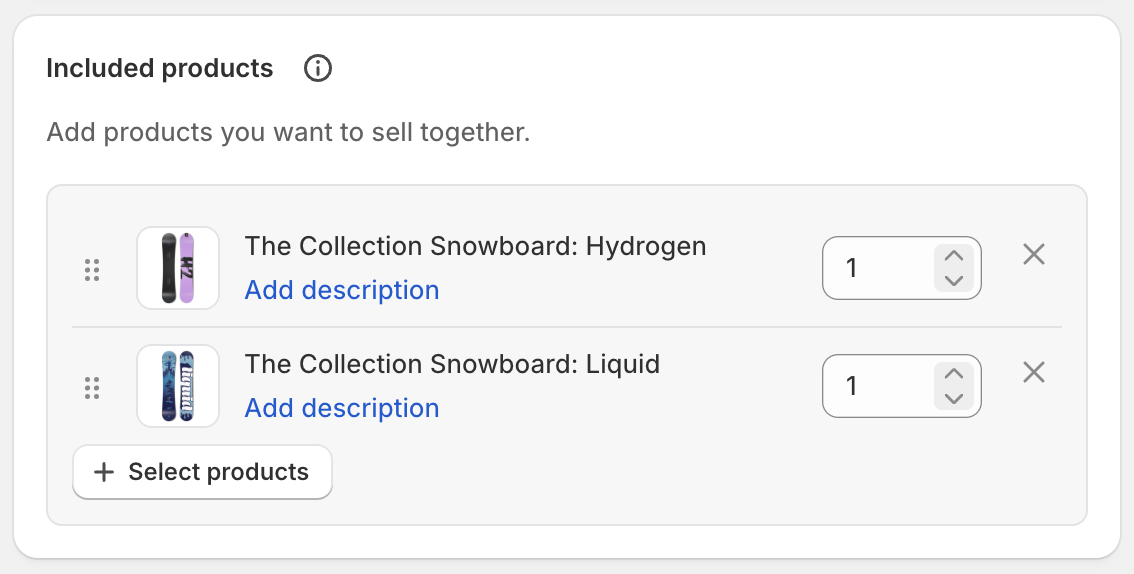
Included products
Each product is one slot in the set. Shoppers receive every slot; they only choose a variant when you include more than one.
- Select products
- Opens the Shopify product picker. Add every item that belongs in the set. You can add more later.
- Quantity
- Units of that product included in one bundle. Minimum 1. Raise it when the set contains two of the same item.
- Edit variants
- For products with more than one variant, choose which ones shoppers may pick. Leave several selected to show a variant dropdown on the storefront.
- Short description
- Optional line under the product name on the bundle page. Use it for a size note or “includes gift box” — not for the product title.
- Reorder
- Drag the handle to set display order. This is the order on the dedicated bundle page and in the widget.
- Remove
- Drops that slot from the set. The catalog product is unchanged.
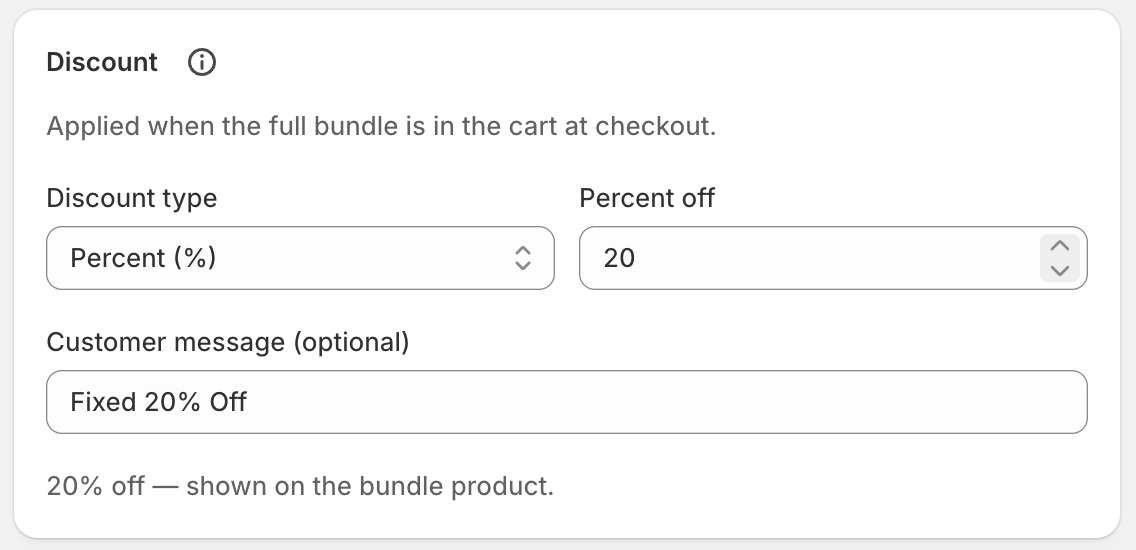
Discount
Applied when the full set is in the cart. You can also sell the set at full price.
- No discount
- The set sells at the sum of component prices.
- Percent (%)
- A percentage off the set. When a bundle product exists, this also shows on that product.
- Fixed amount ($)
- A dollar amount off, applied at checkout only.
- Set price ($)
- A specific total for the whole set. Shown on the bundle product when one exists.
- Free shipping
- Qualifying checkouts get free shipping when this bundle is detected. No value field — only the customer message.
- Customer message
- Optional label on the discount (for example “Kit discount”). Shown at checkout. Leave blank to use the default wording.
Storefront product, promo, and dates
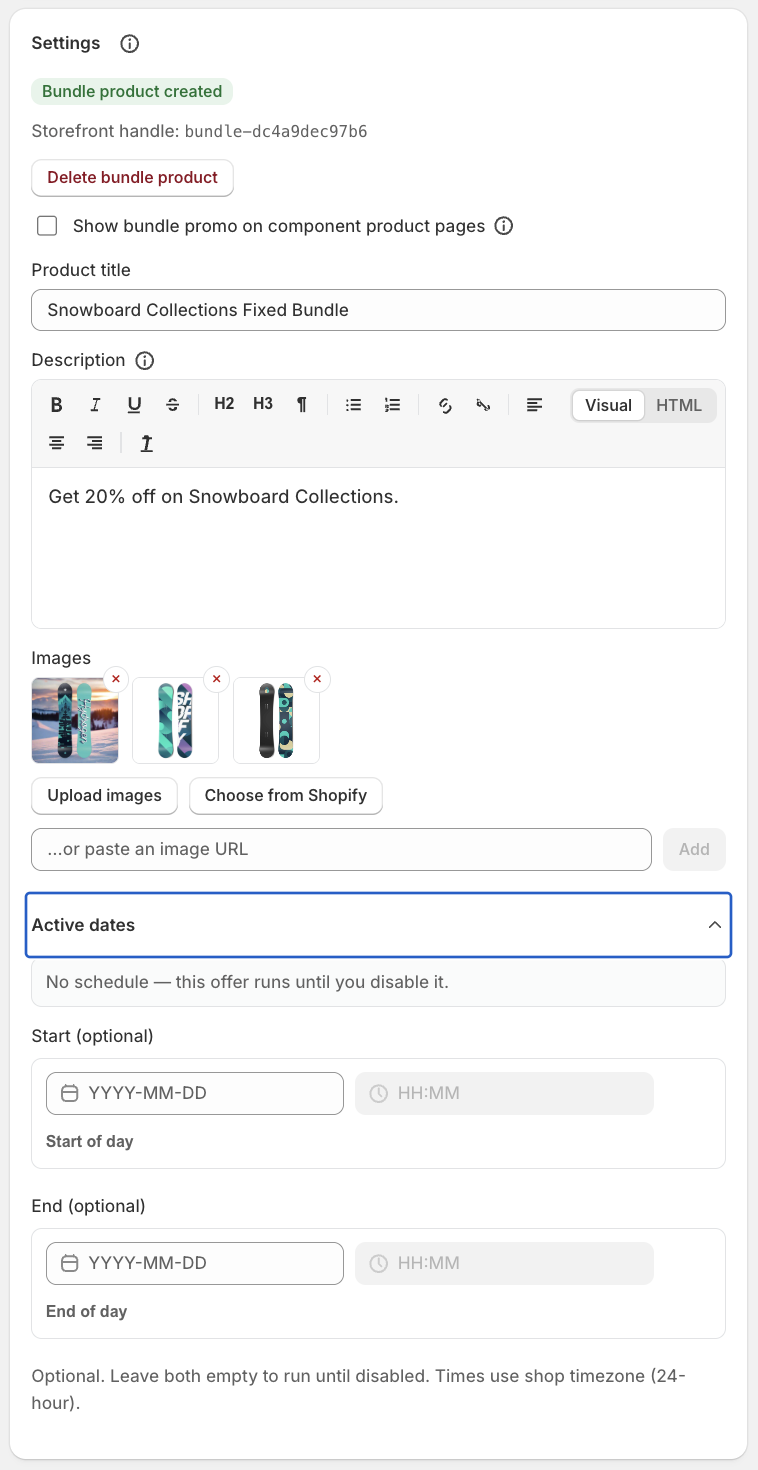
Settings control whether Shopify gets a dedicated product, whether component pages promote the set, and when the offer runs.
- Create a bundle product
- When enabled and the bundle is Enabled, the app creates a Shopify product for this set. Checkout can merge components into one line. Disabled bundles never create the product. After it exists you can delete it — that is permanent (URL, SEO, images).
- Product title
- The Shopify product title shoppers see. Not the internal bundle name.
- Description
- Rich text on the bundle product page. Use lists, links, and highlights; this is the listing copy.
- Images
- Upload, pick from Shopify, or paste a URL. First image is the listing thumbnail. Remove any you do not want published.
- Show bundle promo on component pages
- Adds a card below add-to-cart on each component product, linking to the dedicated bundle page. Requires a bundle product. The widget option below is separate.
- Show storefront widget
- Bundle selection on the dedicated product page. Requires a bundle product and at least one included product. Needs the Bundle widget app embed saved in the theme editor.
- Active dates
- Optional start and end, in shop timezone (24-hour). Leave both empty to run until you disable the bundle. End must be on or after start. Shortcuts: start of day / end of day, and Clear.
Offer copy, theme, and translations
Appearance is available once a bundle product or the storefront widget is on. The live preview reflects these fields.
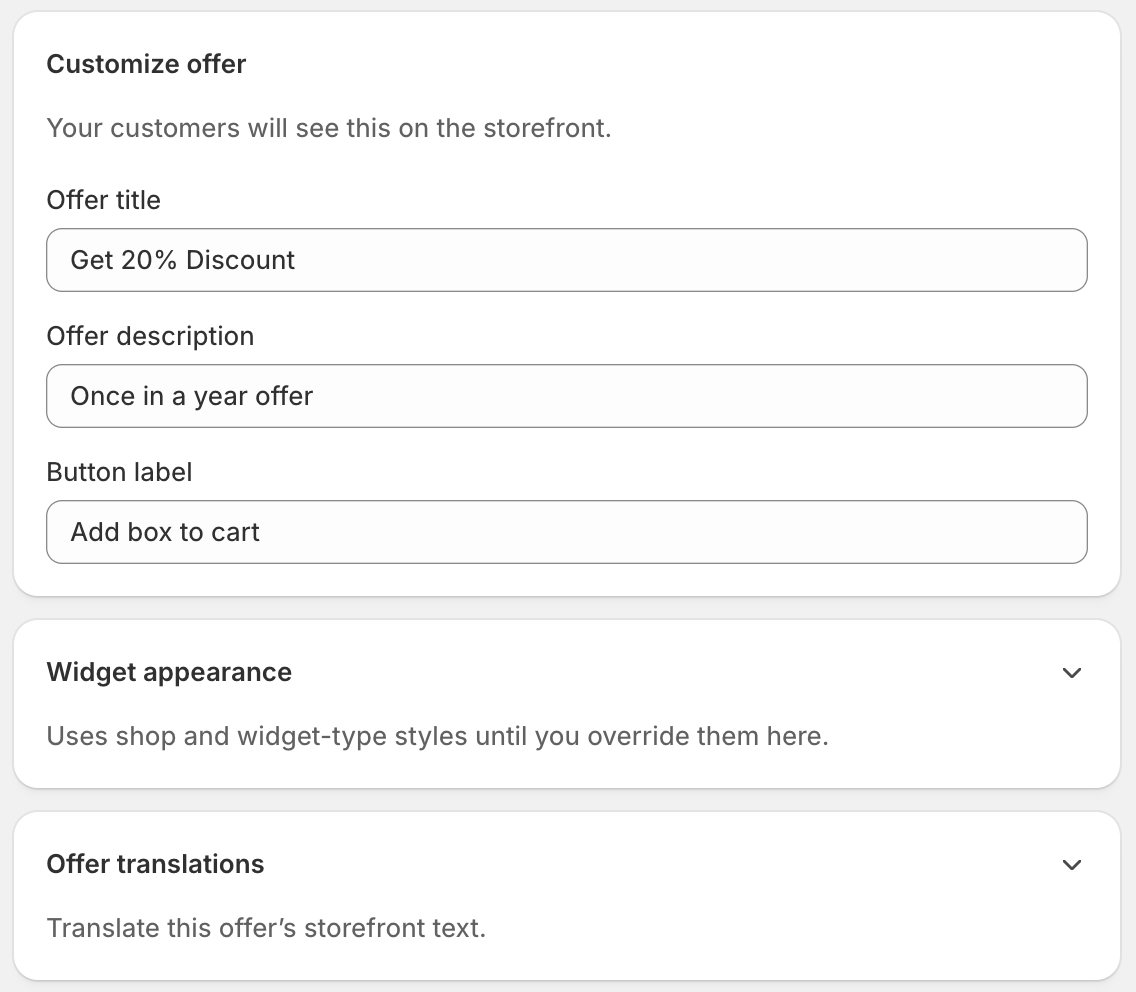
- Offer title
- Headline on the widget. Example placeholder: “Bundle & save”.
- Offer description
- Supporting line under the title.
- Button label
- Add-to-cart wording on the widget.
- Widget appearance
- Optional colour and type overrides for this bundle. Empty fields inherit the shop defaults from Settings. Reset restores inheritance.
- Offer translations
- Translate title, description, and button for each published shop language. Leave a field blank to keep the primary-language text. Primary copy is edited in the fields above. Shared widget chrome lives on the app Translations page.
Save, enable, and go live
Create, then Enable
Create bundle saves a Disabled definition. When products and discount look right, press Enable. Unsaved edits are discarded if you enable without saving first.
Wait for Enabled · Live
The badge in the page title is the source of truth. Syncing means the publish is still running. Out of sync or Sync failed: save while enabled to retry. How to read the badge.
Check the storefront
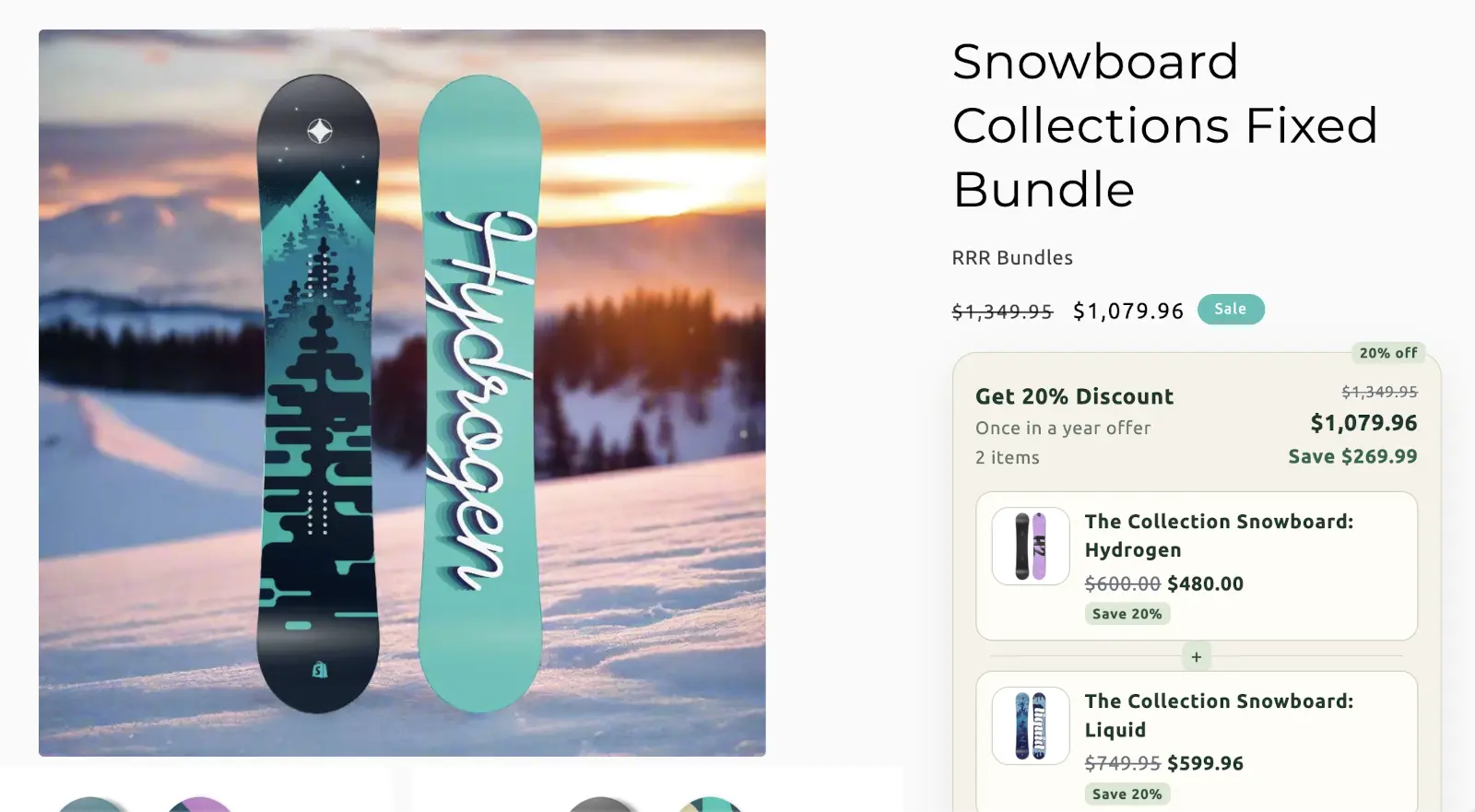
If you created a bundle product, open that product on the Online Store. Confirm the widget, prices, and add-to-cart. The three checkout functions must already be active or the discount will not apply.
To remove the offer from the storefront, Disable it. Delete (in the danger zone at the bottom of the editor) permanently removes the definition and clears Shopify in the background.