Getting started
Four steps, all inside your Shopify admin. Nothing to install on your theme by hand, and no code changes required.
Install from the App Store
Install RRR Bundles from the Shopify App Store listing. Shopify handles the install and the permission grant. Afterwards, the app opens from Apps in your Shopify admin.
Activate the checkout functions
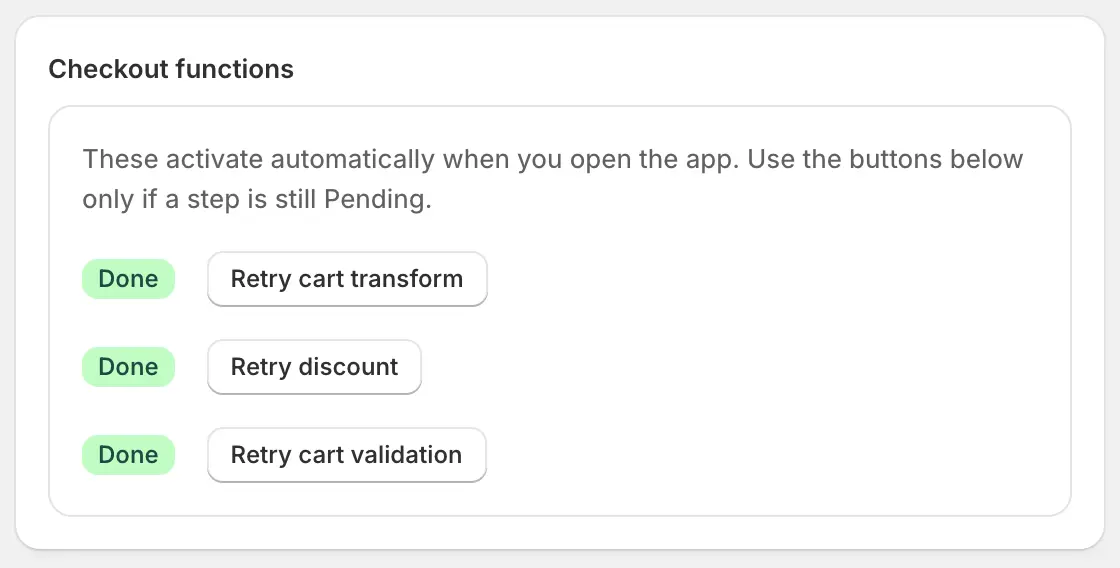
Three Shopify Functions do the pricing work: a discount function, a cart transform, and a cart validation. Open Settings in the app and activate them — each shows a status badge, and the Home checklist clears once all three are done.
Until these are active you can author bundles, but bundle pricing will not be applied at checkout.
Enable the storefront widgets
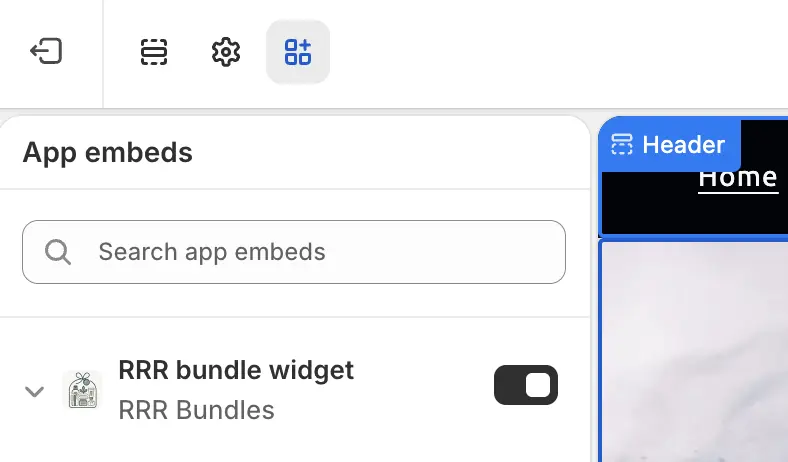
Two theme extensions control what shoppers see. Both are enabled in the Shopify theme editor rather than in the app:
- Bundle widget (app embed) — bundle selection on product pages, plus an optional cross-sell popup.
- Cart upsell (app block) — a frequently-bought-together block in the cart.
Home and Settings both contain deep links that open the theme editor in the right place.
Press Save in the theme editor after enabling. This is the step most people miss — without it the widget will not appear on your storefront, even though the app shows it as available.
Create your first bundle
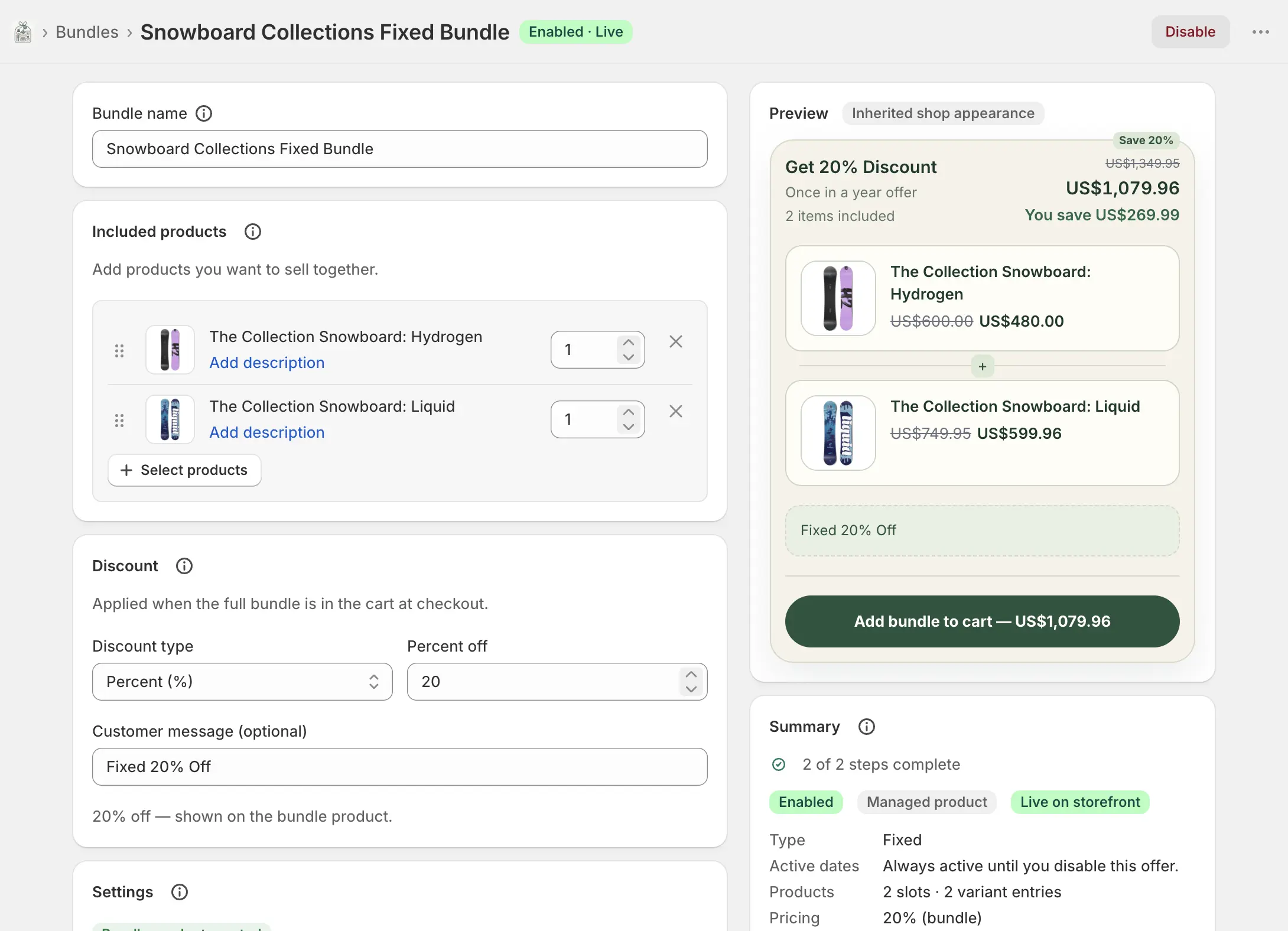
Go to Bundles, create one, add its products and pricing, and enable it. The app then publishes to Shopify in the background and the badge tells you where things stand.
Each type has a different editor. Walk through creating every type — Fixed, Multipack, Build your own, Frequently bought together, Add-on, Buy X Get Y, Cross-sells, and Product upgrades.
Reading the sync badge
Publishing happens in the background, so the badge on each bundle is how you know whether your storefront reflects your latest save.
- Enabled · Syncing
- Saved, publish in progress. Not yet guaranteed live — newer saves are coalesced automatically.
- Enabled · Live
- Published and verified against Shopify. Ready for shoppers. This is the only state that confirms your current definition is live.
- Enabled · Out of sync
- Reconciliation found Shopify differs from your saved bundle. Save again while enabled to repair it.
- Enabled · Sync failed
- Publishing exhausted its retries. Save again while enabled to retry, or contact support if it persists.
- Enabled · Sync unverified
- A catalog change invalidated sync confidence. Use Check sync, or save while enabled.
Choosing a plan
Development stores start on an internal Development plan, so you can build and test without a charge. Live stores pick a plan on the Plans page; the charge is approved through Shopify and appears on your Shopify invoice.
When a development store becomes a live store, any test charge is cancelled and a real plan is required before bundles can be published. The app shows a banner when that happens, so it will not fail silently.
Plan limits are based on attributed bundle revenue, not total store sales. See how it is calculated before picking a tier — most stores need a smaller plan than they expect.