How to create each bundle type
Open Bundles in the app, choose a type, then fill in every section of that editor. Each demo below walks through the fields for that type — products, pricing, storefront, and appearance — with screenshot placeholders you can match when you capture the real UI.
Start in the Shopify admin
Every type begins the same way. The editor then changes to match the type you picked.
Open Bundles and create
In your Shopify admin, open Apps → RRR Bundles → Bundles, then Create bundle. New bundles start Disabled so nothing is published until you enable them.
Choose the type
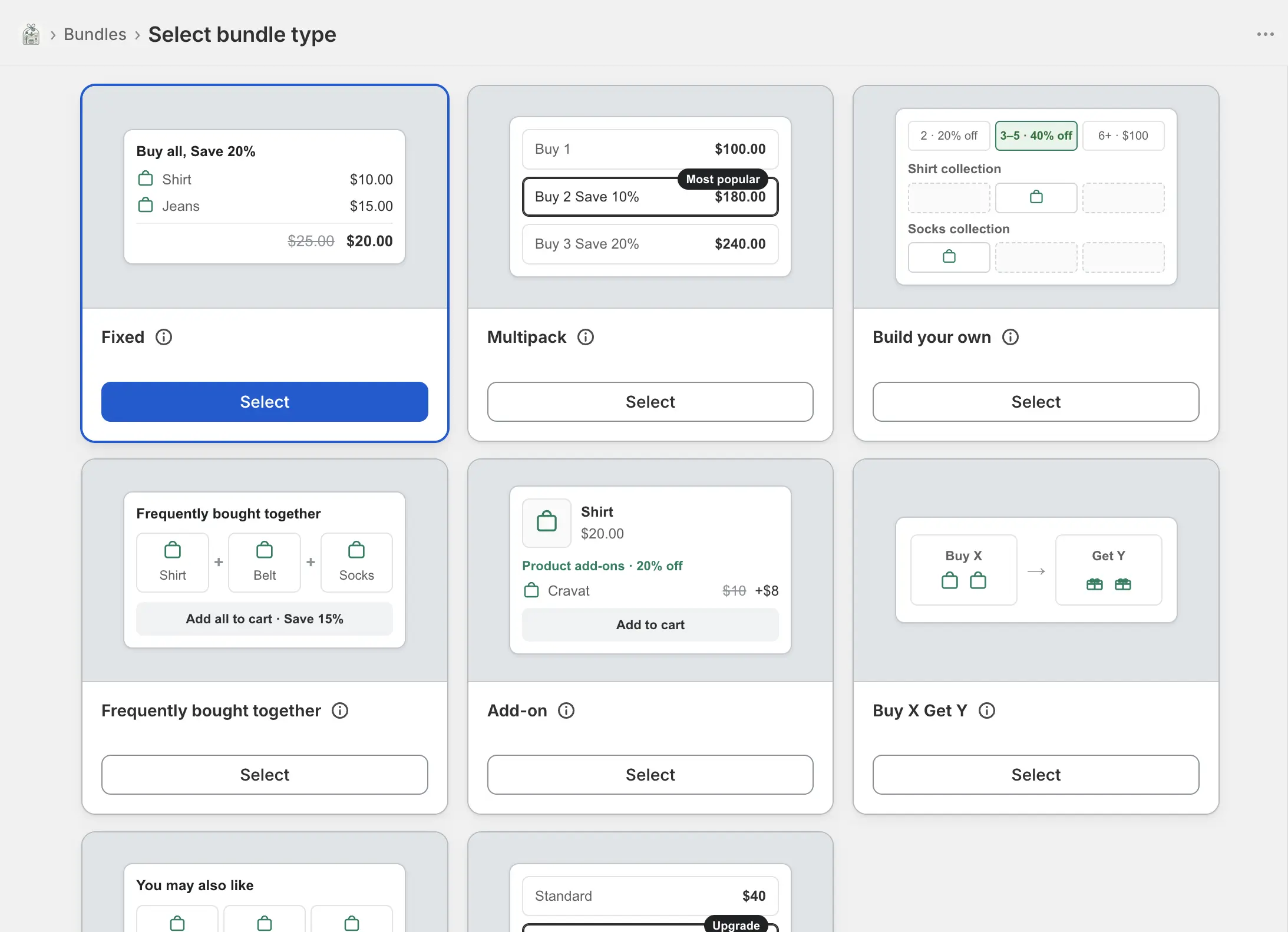
The type picker lists eight options. Pick the one that matches how shoppers should build the offer — you cannot change type later, so duplicate into a new bundle if you need a different one.
Name it, save, then enable
Bundle name is internal only — shoppers never see it. Press Create bundle (or Save on later edits), then Enable when the definition is ready. Publishing runs in the background; wait for Enabled · Live before treating the storefront as current. See Getting started for the sync badge.
Pick a type
Use the type whose shopper flow matches the offer. Each page covers every field in that editor.
Fixed
An exact set of products. Every part is required. Optional dedicated product page that checkout can merge into one line.
Fixed creation demoMultipack
Buy-more-save-more quantity breaks. Apply to one product, a group, or the whole catalog (with exclusions).
Multipack creation demoBuild your own
Mix and match or build-a-box. Shoppers pick from labeled sections, with size modes and a dedicated builder page.
Build your own demoFrequently bought together
Anchor product plus companions. Discount-only — checkout never merges the lines into a bundle product.
FBT creation demoAdd-on
Require one product, then offer discounted extras on its product page. Checkout applies the deal when both are in the cart.
Add-on creation demoBuy X Get Y
Same product or a separate reward pool. Free, percent off, amount off, or a set price on the reward.
Buy X Get Y demoCross-sells
Recommend products in a pop-up after add to cart, or as an embedded block on the product page, the cart, or both.
Cross-sells demoProduct upgrades
On the base product page, offer higher-value variants at the buy box, with an optional percent-off incentive.
Upgrades demoBefore shoppers can see a bundle
Authoring is not enough on its own. Checkout functions and theme widgets have to be on, and the bundle has to be live.
Activate the three Shopify Functions and enable the theme embed (and cart block, if you use it) from Getting started. Until those are done you can still create bundles, but pricing and widgets will not run.